Business Partner (BP)
Create Business Partner
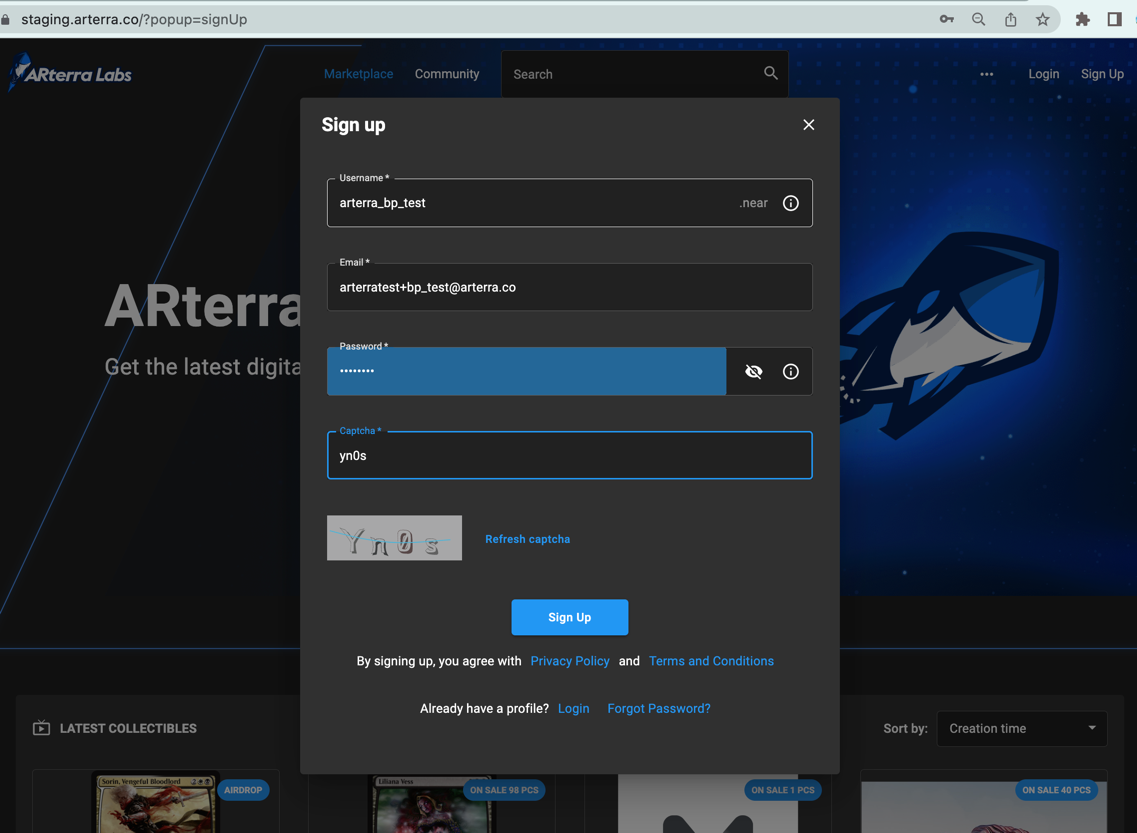
Before creating Business Partner future partner has to create an account on ARterra Labs platform.
During the process of partner creation this registered user will be assigned to BP ADMIN role.
note
By default, right after registration this user has FAN user role. But no worries, the role is going to be changed during assigning root ADMIN user to your Business Partner.
Then you need to contact ARterra Labs Representative who will create a business partner entity for you
and assign first BP_ADMIN user.
caution
Make sure that your root user has email verified
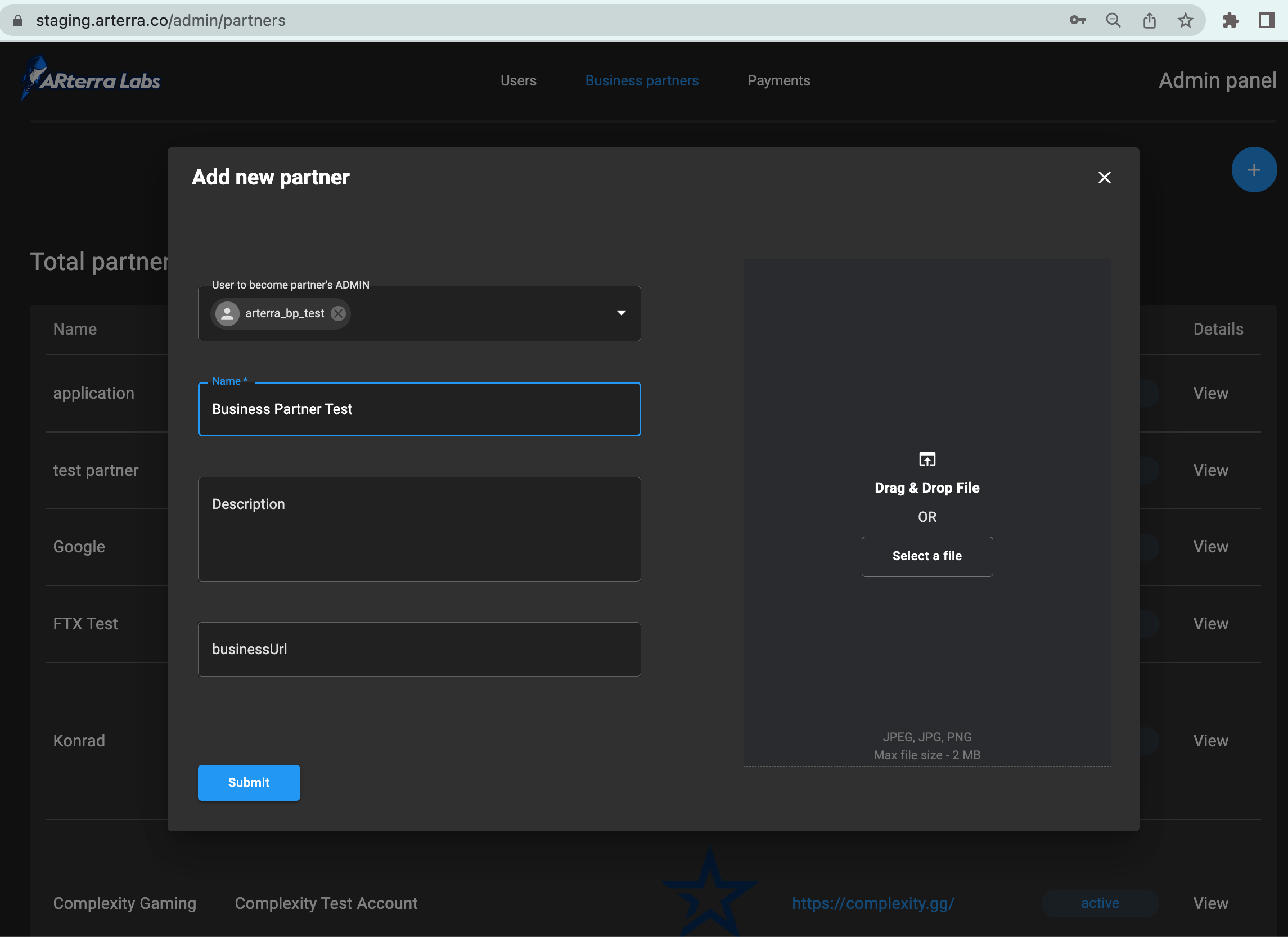
Further, you can change your branding logo, description and assign more BP_ADMIN users on your own in the Admin Panel.
Manage Business Partner entity
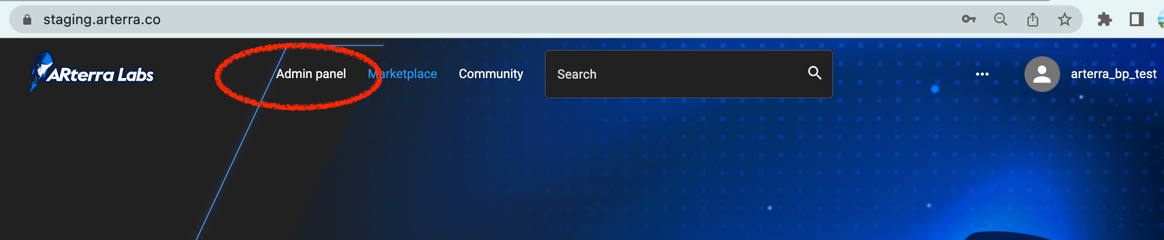
Now, when you have your Business Partner entity created you can sign in as BP_ADMIN user and go to Admin Panel.
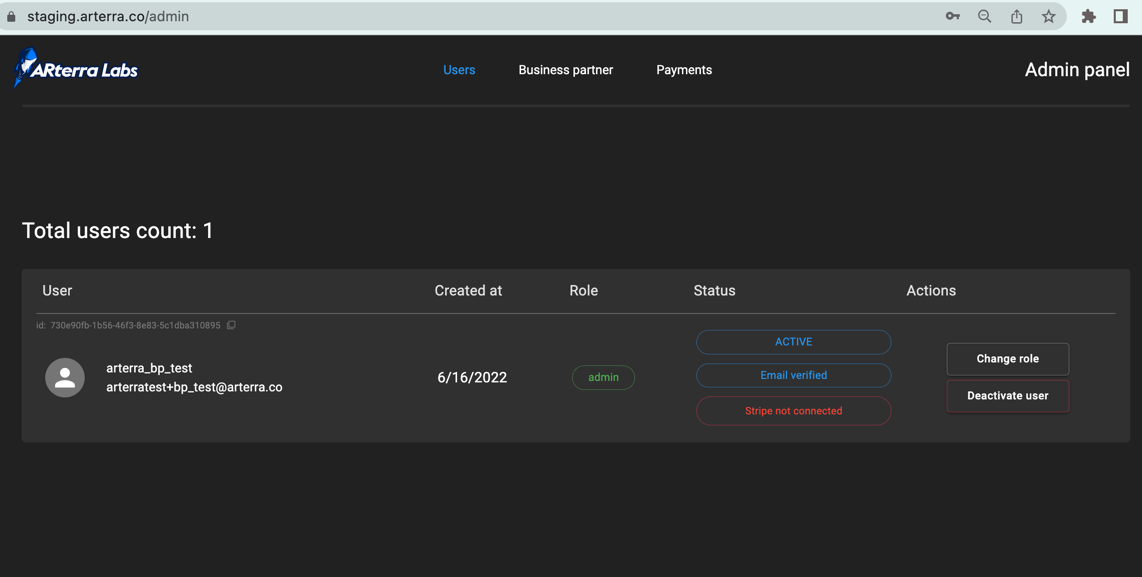
By default, Users Admin Page is opened, and you should see only 1 user that this currently authorized.
To edit Business Partner details go to Business Partner tab in the top header menu.
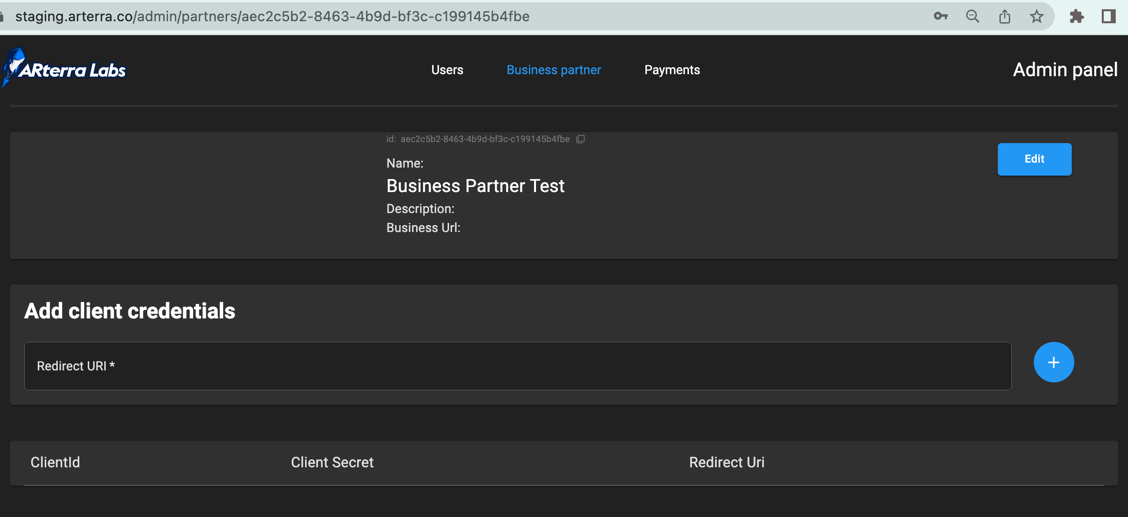
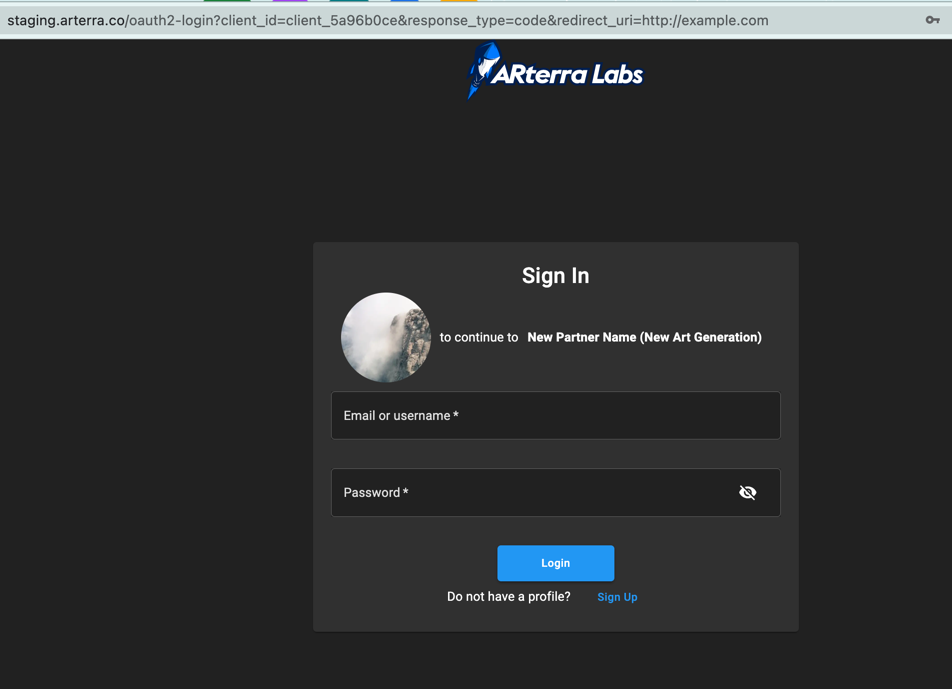
Information provided here is shown on the OAuth2 login page about your company, so that users that go from your application can see your branding details and trust that your company is a partner of ARterra Labs Platform.
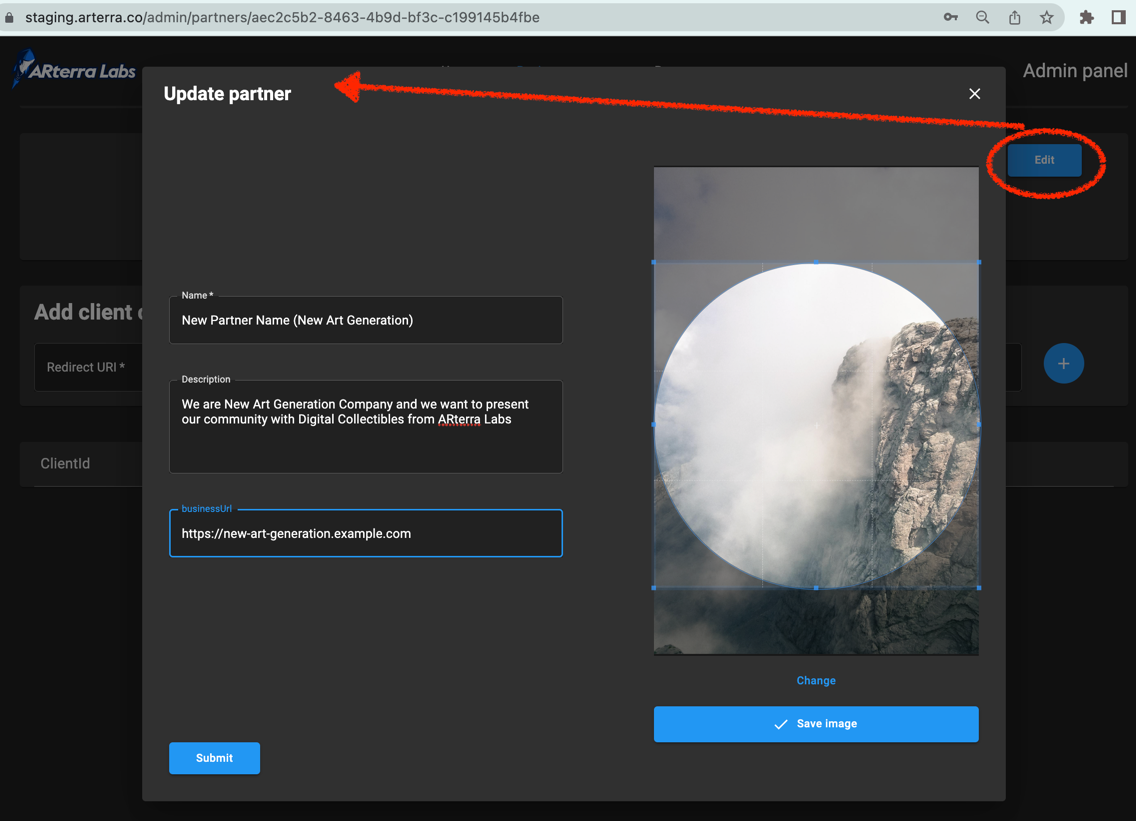
To edit information you need to click Edit button.
Let's change all fields and then check how will look like OAuth2 login page for your users.
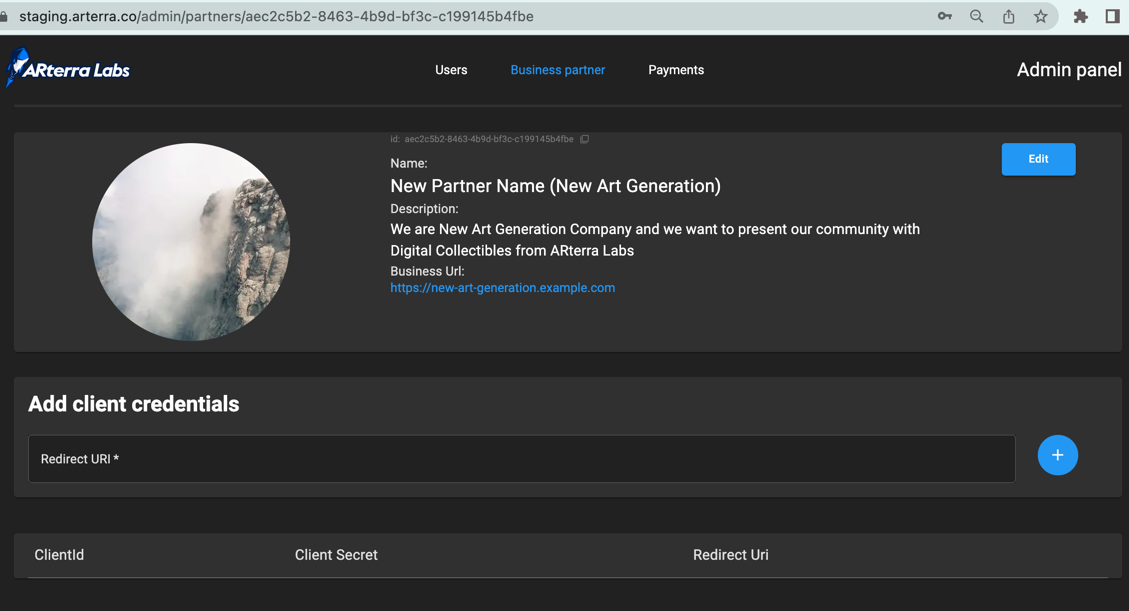
That's how your Business Partner will look like after the changes:
OAuth2 login page for your users now will look like this
Client Credentials section is tightly connected to OAuth2 integration with ARterra Labs API and is described in next documentation page.
Payments Admin Page is described in more details in this section.
Assign Business Partner ADMIN user
TODO